
GitHub Copilot CLI ਬਨਾਮ VS Code: 2026 ਵਰਕਫਲੋ ਤੁਲਨਾ
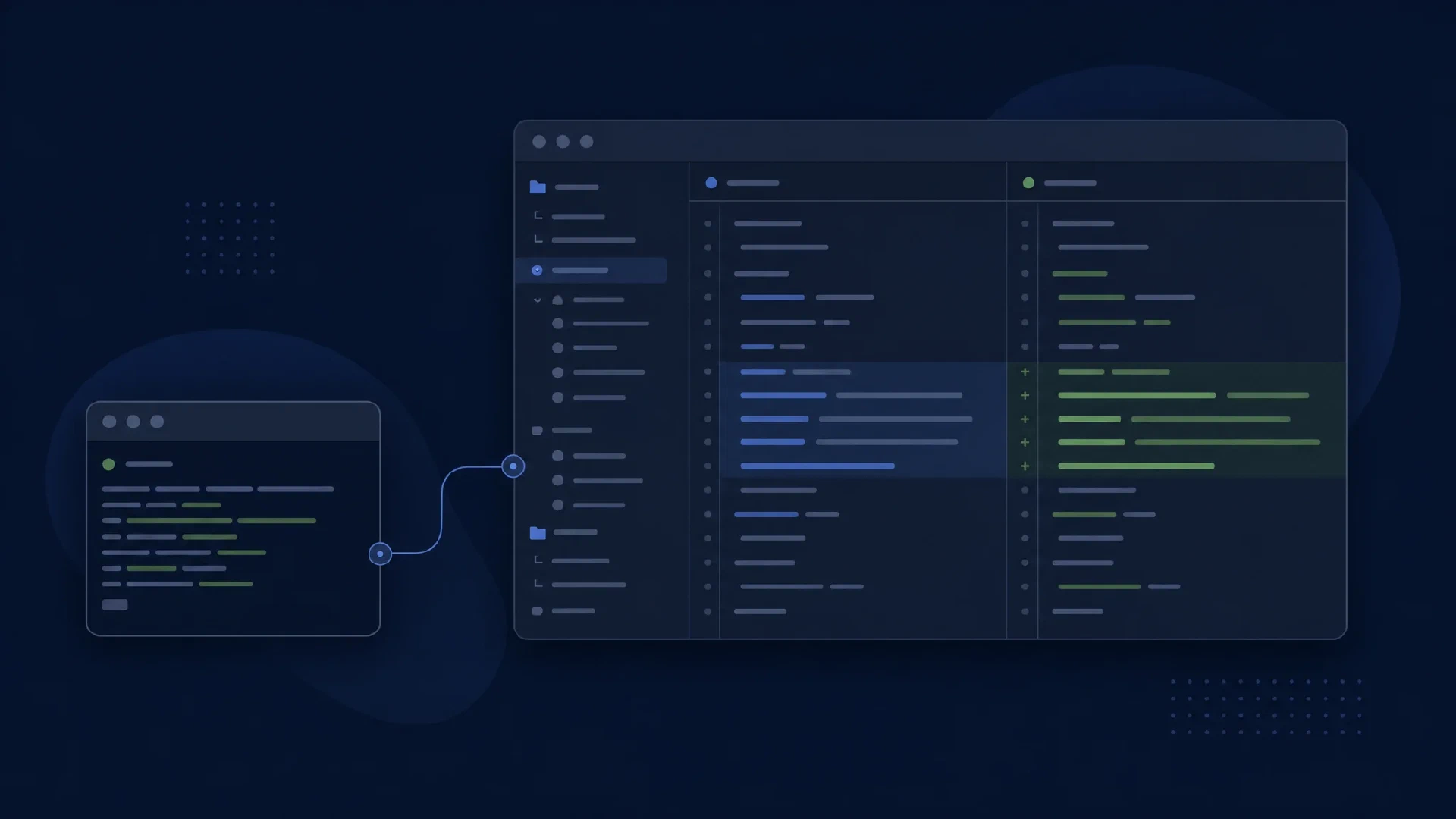
Table of Contents
GitHub Copilot CLI ਅਤੇ VS Code ਵਿੱਚ Copilot ਕੋਡਿੰਗ ਕੰਮ ਲਈ ਵੱਖਰੇ ਦਾਖਲਾ ਰਸਤੇ ਦਿੰਦੇ ਹਨ। CLI shell ਅਤੇ task prompt ਤੋਂ ਸ਼ੁਰੂ ਹੁੰਦਾ ਹੈ। VS Code ਐਡੀਟਰ ਸੰਦਰਭ, ਸੁਝਾਅ, ਚੈਟ ਅਤੇ ਏਜੰਟ ਵਰਕਫਲੋ ਜੋੜਦਾ ਹੈ। ਦੋਵਾਂ ਨੂੰ ਇੱਕੋ ਖਾਤਾ ਅਤੇ ਰਿਪੋਜ਼ਟਰੀ ਨੀਤੀ ਹੇਠ ਪਰਖੋ।
ਚੋਣ ਇਕੱਲੀ ਨਹੀਂ ਹੈ। GitHub Copilot CLI ਅਤੇ VS Code ਦਾ connection ਦਰਜ ਕਰਦਾ ਹੈ। ਦੋਵਾਂ ਨੂੰ ਸਪਸ਼ਟ ਤੌਰ ਤੇ ਜੋੜਨ ਨਾਲ terminal task ਨੂੰ editor selection ਅਤੇ visual review ਮਿਲਦੀ ਹੈ।
ਮੁੱਖ ਨੁਕਤੇ
- ਟਰਮੀਨਲ-ਅਧਾਰਿਤ ਕੰਮ ਲਈ Copilot CLI ਵਰਤੋ ਅਤੇ ਸਮਰਥਿਤ programmatic invocation ਚਲਾਓ।
- ਐਡੀਟਰ-ਕੇਂਦਰਿਤ ਕੰਮ ਲਈ VS Code ਵਿੱਚ Copilot ਵਰਤੋ, inline ਸਹਾਇਤਾ ਅਤੇ Agent ਮੋਡ ਸਮੇਤ।
- CLI ਨੂੰ VS Code ਨਾਲ ਜੋੜੋ ਜਦੋਂ terminal prompts ਨੂੰ editor context ਅਤੇ diffs ਚਾਹੀਦੇ ਹੋਣ।
- ਖਾਤਾ, ਮਾਡਲ ਅਤੇ policy settings ਦੀ ਜਾਂਚ ਕਰੋ, ਇੱਕੋ product family ਵਿੱਚ ਵੀ।
ਦਾਇਰਾ ਅਤੇ ਮਿਤੀ: ਅਧਿਕਾਰਤ documentation 10 ਅਕਤੂਬਰ 2026 ਨੂੰ ਜਾਂਚੀ ਗਈ। ਇਹ ਤੁਲਨਾ standalone copilot CLI ਅਤੇ VS Code ਵਿੱਚ Copilot ਦੀ ਹੈ, ਪੁਰਾਣੀ gh copilot extension ਜਾਂ GitHub issue ਨੂੰ ਦਿੱਤੇ cloud agent ਦੀ ਨਹੀਂ। Testable repository ਅਤੇ permitted Copilot access ਲੋੜੀਂਦਾ ਹੈ। Trial ਲਈ ਇੱਕ ਘੰਟਾ ਰੱਖੋ।
ਕੰਮ ਕਰਨ ਦੇ ਤਿੰਨ ਤਰੀਕੇ
| ਵਰਕਫਲੋ | ਮੁੱਖ interaction | ਢੁੱਕਵਾਂ trial task |
|---|---|---|
| Standalone CLI | Terminal prompt ਅਤੇ command output | Reproduced test failure ਸਮਝਾ ਕੇ ਠੀਕ ਕਰਨਾ |
| VS Code integration | Editor selection, chat, suggestions ਅਤੇ diffs | Selected function ਅਤੇ ਉਸਦੇ tests ਬਦਲਣਾ |
| CLI connected to VS Code | Editor context ਅਤੇ review ਵਾਲਾ terminal task | Shell ਤੋਂ ਜਾਂਚ ਕਰਕੇ patch ਨੂੰ visually inspect ਕਰਨਾ |
Hybrid ਤਰੀਕਾ CLI session ਹੀ ਰਹਿੰਦਾ ਹੈ। Integrated terminal ਵਿੱਚ ਚਲਾਉਣ ਨਾਲ ਇਹ ਆਪਣੇ ਆਪ editor ਦੀ native Agent-mode conversation ਨਹੀਂ ਬਣਦਾ। Active session ਅਤੇ connection ਜਾਂਚੋ।
CLI ਕੀ ਦਿੰਦਾ ਹੈ
copilot
ਮੌਜੂਦਾ standalone command terminal agent ਸ਼ੁਰੂ ਕਰਦਾ ਹੈ। GitHub ਦਾ Copilot CLI overview interactive ਅਤੇ programmatic use, planning ਅਤੇ tool permissions ਦੱਸਦਾ ਹੈ। ਜਿੱਥੇ terminal output ਮੁੱਖ ਸਬੂਤ ਹੋਵੇ, ਉੱਥੇ ਇਸਨੂੰ ਪਰਖੋ।
ਚੰਗੇ ਪਹਿਲੇ task ਵਿੱਚ concrete failure ਹੁੰਦੀ ਹੈ। Failing command, expected behavior ਅਤੇ unrelated refactoring ਤੋਂ ਰੋਕ ਦਿਓ। Files ਬਦਲਣ ਤੋਂ ਪਹਿਲਾਂ issue reproduce ਕਰਨ ਲਈ ਕਹੋ ਅਤੇ final explanation ਨੂੰ test output ਨਾਲ ਮਿਲਾਓ।
Automation ਨੂੰ ਸਪਸ਼ਟ ਹੱਦਾਂ ਚਾਹੀਦੀਆਂ ਹਨ। Invocation ਅਤੇ controls ਲਈ CLI usage guides ਵਰਤੋ। Unattended jobs ਤੋਂ ਪਹਿਲਾਂ allowed tools, time limits ਅਤੇ output handling ਤੈਅ ਕਰੋ। Interactive permission ਨੂੰ pipeline ਦੀ blanket authorization ਨਾ ਬਣਾਓ।
Sandbox trial ਦੀ ਹੱਦ ਬਦਲਦਾ ਹੈ। GitHub filesystem, network ਅਤੇ system ਲਈ local sandbox ਅਤੇ isolated execution ਲਈ cloud sandbox ਦੱਸਦਾ ਹੈ। Real repository ਬਦਲਣ ਤੋਂ ਪਹਿਲਾਂ harmless fixture ਨਾਲ sandbox, network access ਅਤੇ write scope ਜਾਂਚੋ।
VS Code ਕੀ ਜੋੜਦਾ ਹੈ
IDE ਵਿੱਚ Copilot experience ਵਿੱਚ suggestions, chat ਅਤੇ agent tasks ਹਨ। IDE overview ਇਹ functions ਵੱਖ ਕਰਦਾ ਹੈ। ਜਦੋਂ ਤੁਸੀਂ primary editor ਹੋਵੋ, inline assistance ਲਾਭਦਾਇਕ ਹੈ। ਕਈ files ਵਿੱਚ bounded outcome ਲਈ Agent mode ਲਾਭਦਾਇਕ ਹੈ।
Agent mode edits ਅਤੇ commands ਨੂੰ iterative ਤਰੀਕੇ ਨਾਲ ਚਲਾਉਂਦਾ ਹੈ। Agent-mode guide Agent ਚੁਣਨਾ, changes review ਕਰਨਾ ਅਤੇ MCP ਰਾਹੀਂ tools ਵਧਾਉਣਾ ਦੱਸਦਾ ਹੈ। Availability configuration ਅਤੇ administration ਉੱਤੇ ਵੀ ਨਿਰਭਰ ਹੈ।
Context transfer ਨੂੰ ਸੋਚ ਸਮਝ ਕੇ ਪਰਖੋ। Function ਚੁਣ ਕੇ error handling ਦੀ explanation ਮੰਗੋ। ਫਿਰ independent test ਨਾਲ ਛੋਟਾ change ਮੰਗੋ। ਦਰਜ ਕਰੋ ਕਿ neighboring files ਦੇਣ ਜਾਂ agent ਦੀ assumption ਠੀਕ ਕਰਨ ਦੀ ਲੋੜ ਪਈ ਕਿ ਨਹੀਂ।
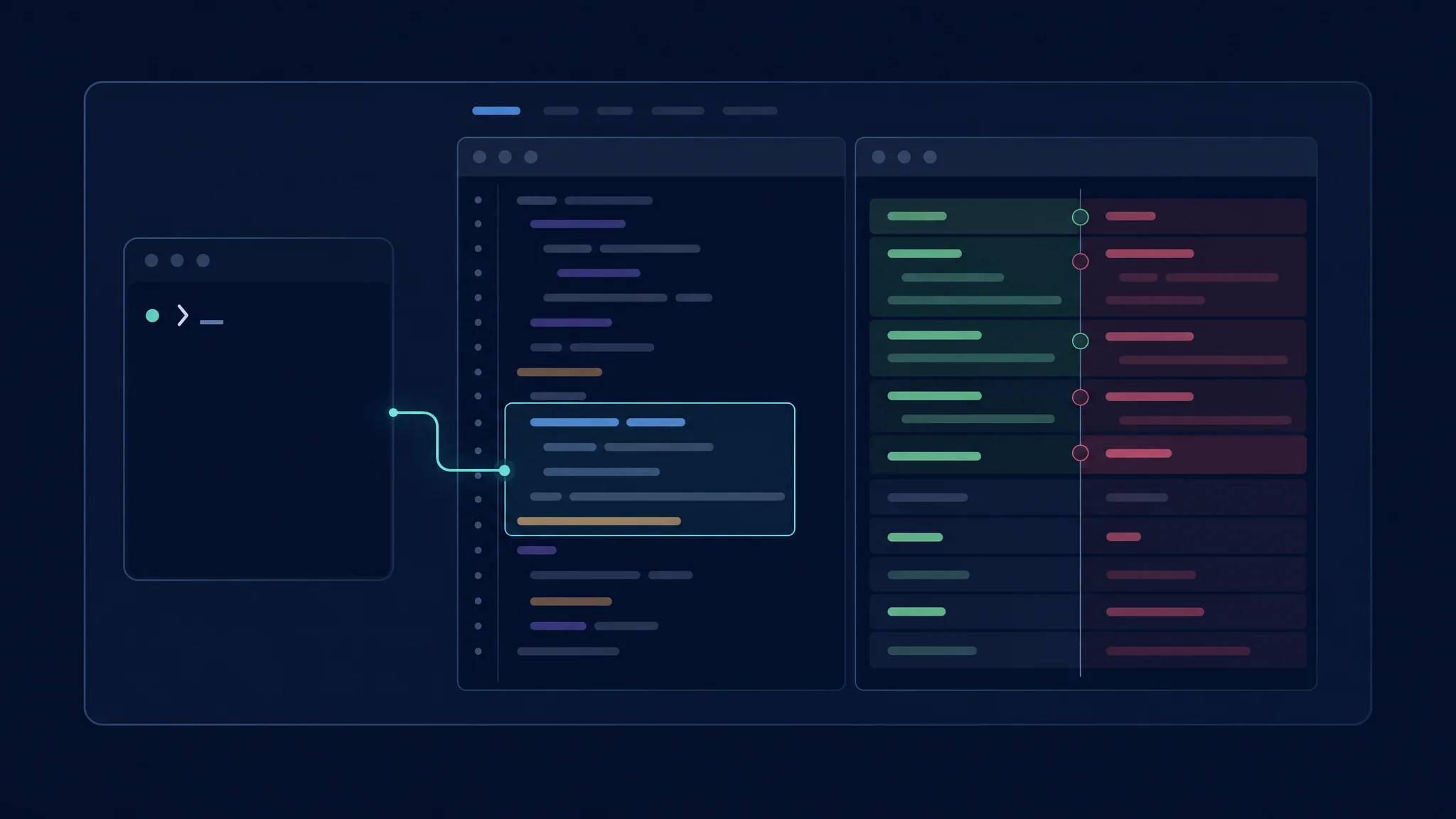
Connected CLI session terminal input ਨੂੰ editor review ਨਾਲ ਜੋੜਦਾ ਹੈ
ਦੋਵੇਂ interfaces ਜੋੜੋ
/ide
Interactive Copilot CLI session ਵਿੱਚ /ide ਵਰਤੋ VS Code connection inspect ਜਾਂ ਬਦਲਣ ਲਈ।
Connection guide
trusted workspace match, editor selection sharing ਅਤੇ proposed file edits ਨੂੰ diffs ਵਜੋਂ ਦਿਖਾਉਂਦੀ ਹੈ।
Automatic connection workspace match ਉੱਤੇ ਨਿਰਭਰ ਹੈ। Repository name ਇੱਕ ਹੋਣ ਨਾਲ local CLI remote Codespace ਨਾਲ ਨਹੀਂ ਜੁੜਦਾ। Corresponding environment ਵਿੱਚ CLI ਚਲਾਓ। Broad edit authorization proposed-edit diff approval ਨੂੰ bypass ਕਰਦੀ ਹੈ। Prompts ਗਾਇਬ ਹੋਣ ਤੇ permissions ਜਾਂਚੋ।
CLI transcripts VS Code ਦੀ Sessions view ਵਿੱਚ ਦਿਸਦੇ ਹਨ, Resume in Terminal ਰਾਹੀਂ ਜਾਰੀ ਰੱਖੇ ਜਾ ਸਕਦੇ ਹਨ। Terminal workflow ਰਹਿੰਦਾ ਹੈ, ਪਰ conversation native editor-agent session ਨਹੀਂ ਬਣਦੀ।
| Connect ਕਰਨ ਤੋਂ ਪਹਿਲਾਂ | ਜਾਂਚ |
|---|---|
| Workspace | Intended folder ਖੁੱਲ੍ਹਾ ਅਤੇ trusted ਹੈ |
| Execution location | CLI ਅਤੇ editor integration ਇੱਕੋ environment ਨੂੰ ਦਰਸਾਉਂਦੇ ਹਨ |
| Selection | Highlighted code ਮੌਜੂਦਾ request ਨਾਲ ਮਿਲਦਾ ਹੈ |
| Permissions | ਲੋੜ ਹੋਣ ਤੇ proposed-edit review enabled ਹੈ |
| Session | Intended conversation ਜਾਰੀ ਹੈ |
Models, billing ਅਤੇ policy
ਜੇ ਉਪਲਬਧ ਹੋਵੇ ਤਾਂ ਦੋਵੇਂ interface trials ਵਿੱਚ ਇੱਕੋ selected model ਵਰਤੋ। Options ਵੱਖ ਹੋਣ ਤੇ mismatch ਦਰਜ ਕਰੋ। ਵੱਖਰਾ model, context ਜਾਂ tool set experiment ਬਦਲਦਾ ਹੈ।
Account ਵਿੱਚ current usage accounting ਜਾਂਚੋ। GitHub Agent-mode documentation AI Credits ਦਾ ਹਵਾਲਾ ਦਿੰਦੀ ਹੈ। Billing arrangement ਜਾਂਚੇ ਬਿਨਾਂ ਪੁਰਾਣੇ premium-request estimates ਨਾ ਲਗਾਓ। CLI prompt ਅਤੇ editor task ਆਪਣੇ ਆਪ ਇੱਕੋ work unit ਨਹੀਂ ਹਨ।
Organization access ਲਾਜ਼ਮੀ ਹੈ। Feature ਨਾ ਮਿਲੇ ਤਾਂ extension reinstall ਤੋਂ ਪਹਿਲਾਂ policy ਵੇਖੋ। ਦੋਵੇਂ surfaces ਲਈ approved tools ਅਤੇ integrations ਦਰਜ ਕਰੋ। Provider login ਹਰ repository ਬਦਲਣ ਜਾਂ ਹਰ external service ਨਾਲ ਸੰਪਰਕ ਦੀ authority ਨਹੀਂ ਦਿੰਦਾ।
Paired trial ਚਲਾਓ
ਇੱਕੋ starting revision ਦੀਆਂ ਦੋ copies ਤਿਆਰ ਕਰੋ। Matching instructions ਅਤੇ acceptance tests ਵਰਤੋ। ਪਹਿਲੀ ਕੋਸ਼ਿਸ਼ standalone CLI ਅਤੇ ਦੂਜੀ VS Code Agent mode ਵਿੱਚ ਕਰੋ। Connected CLI ਤੀਜੀ ਵਾਰ ਤਾਂ ਹੀ ਵਰਤੋ ਜੇ mixed interaction ਤੁਹਾਡੇ ਕੰਮ ਨਾਲ ਮਿਲਦੀ ਹੋਵੇ।
| Measure | ਦਰਜ ਕਰਨ ਦਾ ਕਾਰਨ |
|---|---|
| Supplied context | ਲੁਕਿਆ manual setup effort ਦਿਖਾਉਂਦਾ ਹੈ |
| Correctness | Plausible code ਅਤੇ verified fix ਵੱਖ ਕਰਦਾ ਹੈ |
| Approval steps | ਇੱਕੋ policy ਹੇਠ supervision burden ਦਿਖਾਉਂਦਾ ਹੈ |
| Review time | ਪੂਰਾ patch ਸਮਝਣ ਦਾ ਸਮਾਂ ਮਾਪਦਾ ਹੈ |
| Manual repairs | Agent ਤੋਂ ਬਾਅਦ ਬਚਿਆ ਕੰਮ ਦਰਜ ਕਰਦਾ ਹੈ |
| Usage | Cost ਨੂੰ accepted outcomes ਨਾਲ ਜੋੜਦਾ ਹੈ |
Recovery ਨੂੰ test ਵਿੱਚ ਰੱਖੋ। Proposed approach ਰੱਦ ਕਰਕੇ ਕਾਰਨ ਦੱਸੋ। ਵੇਖੋ ਕਿ ਅਗਲੀ ਕੋਸ਼ਿਸ਼ useful work ਬਚਾਉਂਦੀ ਅਤੇ correction ਮੰਨਦੀ ਹੈ। ਇਹ ਇੱਕ uninterrupted demo ਨਾਲੋਂ daily usability ਵਧੀਆ ਦਿਖਾਉਂਦਾ ਹੈ।
ਸਮੱਸਿਆ ਹੱਲ ਅਤੇ ਅਗਲੇ ਕਦਮ
ਜੇ CLI ਗਲਤ editor window ਨਾਲ ਜੁੜੇ, /ide inspect ਕਰਕੇ intended workspace ਚੁਣੋ। Visual approval ਰੁਕ ਜਾਵੇ ਤਾਂ broad edit permissions ਵੇਖੋ। Agent mode ਨਾ ਹੋਵੇ ਤਾਂ extension state ਅਤੇ organization policy ਜਾਂਚੋ।
Standalone CLI ਚੁਣੋ ਜਦੋਂ shell context ਅਤੇ repeatable invocation ਮੁੱਖ ਹੋਣ। VS Code ਚੁਣੋ ਜਦੋਂ selection context, inline work ਅਤੇ graphical review ਮੁੱਖ ਹੋਣ। Connected CLI ਵਰਤੋ ਜਦੋਂ terminal entry ਅਤੇ editor inspection ਇਕੱਠੇ ਚੰਗੇ ਚੱਲਣ।
Cross-vendor choices ਲਈ CLI master comparison ਜਾਂ GUI master comparison ਪੜ੍ਹੋ। ਇਨ੍ਹਾਂ evaluations ਨੂੰ ਇਸੇ product family ਦੇ interface trial ਤੋਂ ਵੱਖ ਰੱਖੋ।
Related Posts